Skip to content
Lively Wallpaper logo
Get Lively
Language

The practical guide to
Lively Wallpaper

Everything in one place: what the app does, how people actually use it on real PCs, how to fix the errors that show up again and again, and where to download official builds only.

livelywallpaper.org is an independent information site. "Lively Wallpaper" is developed by Dani John and contributors-always verify installers before you run them.

What is Lively Wallpaper?

Lively Wallpaper is the most popular live wallpaper Windows application that plays animated desktop backgrounds: video files, web pages, shaders, and other interactive scenes. It is free, open source, and actively maintained.

People search for it when they want motion on the desktop without paying for a closed store ecosystem, when they need per-monitor or span layouts, or when they want to host HTML5 or video loops behind their icons. This page collects features, setup steps, hardware expectations, and problem-solving patterns that match what users report in community threads-so you spend less time guessing.

If you are comparing options, remember that any live wallpaper engine trades a small amount of continuous GPU or CPU work for visuals. Lively's strength is flexible content types plus rules to pause when you game, present, or run on battery-details we expand under performance and troubleshooting.

Quick answers

  • Is it free? Yes, Lively Wallpaper is free and open source.
  • Is it safe? Use official, verifiable download sources only.
  • Does it support multiple monitors? Yes, with span or per-display modes.
  • Can it cause lag? Heavy 4K/web scenes can; pause rules usually solve it.

Who benefits most

  • Anyone who wants video or web-based art as a background
  • Multi-monitor setups (span, duplicate, or per-screen)
  • Streamers and gamers who need reliable pause behavior

Before you install

  • Live wallpapers always use some resources while visible
  • Download only from sources you trust and can verify
  • Web wallpapers load remote content-use URLs you trust

More from the image library

Additional visuals supplied for this site-see the full gallery for every file in images/.

Features of Lively Wallpaper

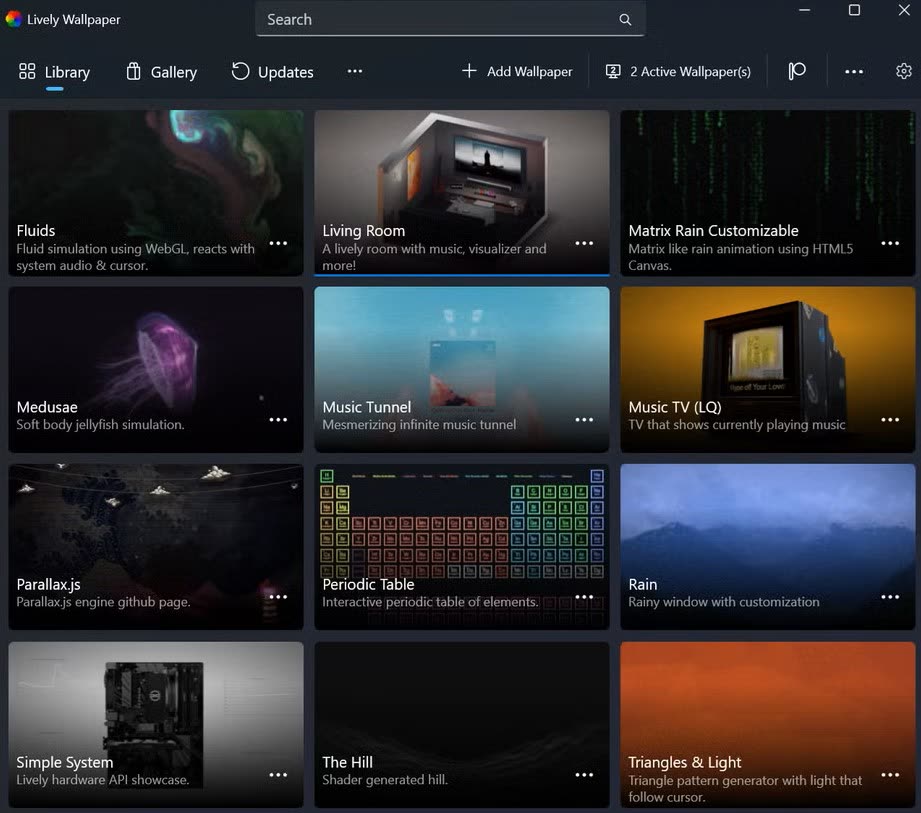
The app bundles a library of examples and lets you add your own media. Capabilities evolve by version; see release notes for your build when you update. Below is what matters day to day.

  • Multiple wallpaper types - video files, URLs, and shader-style backgrounds depending on what you install or create.
  • Audio and visualizers - newer builds refine how audio is routed and which display may play sound, useful for music-reactive scenes.
  • Update channels - some desktop builds offer beta channels inside settings; packaged builds from app marketplaces can differ in update cadence and options.
  • Multi-monitor layouts - span one scene across screens or assign different wallpapers per display where supported.
  • Pause rules - pause on full-screen, on battery, when another app is focused, and other combinations that reduce load during games or meetings.
  • Modern playback stack - components such as MPV and embedded Chromium receive updates for compatibility and security over time.

How to use Lively Wallpaper

These steps match a typical first run. Menu names can shift slightly between versions.

  1. 1

    Install from an official source

    Install from a trusted, verifiable source. Launch Lively from the Start menu.

  2. 2

    Choose a wallpaper

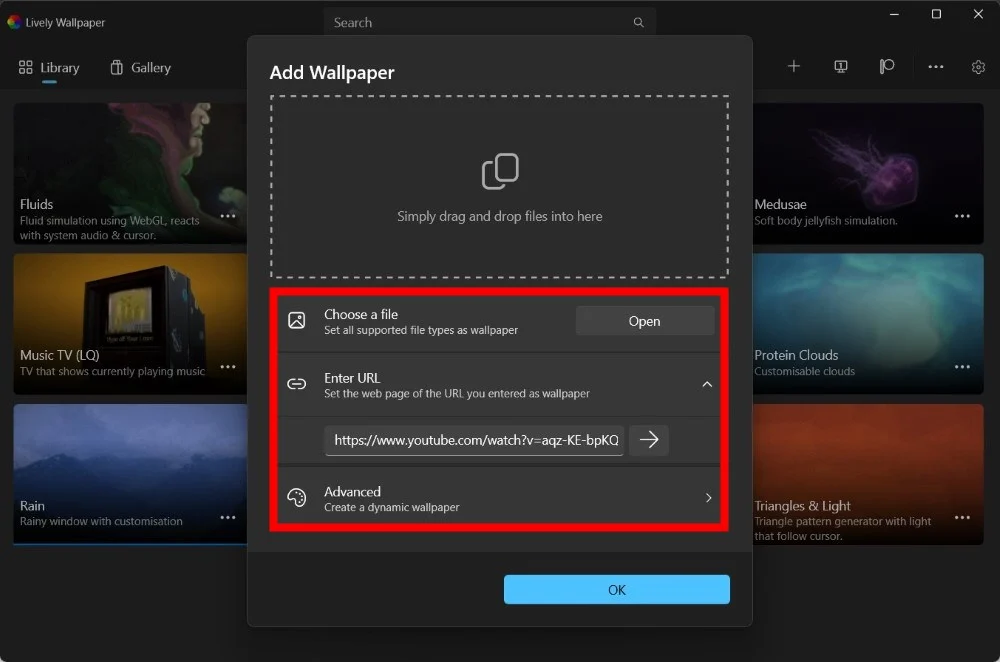
    Start with a bundled sample. Add local video or a web URL only after you confirm the baseline works-this isolates bad files or blocked sites quickly.

  3. 3

    Tune pause rules

    Open settings and enable pauses for full-screen apps and battery mode first. This single step prevents most "game stutter" complaints.

  4. 4

    Configure displays

    On multiple monitors, pick span vs. per-screen. If scaling differs between panels, try matching Windows display scale or test a 1080p clip before blaming the app.

Lively Wallpaper download

Free, open-source, and available from official channels. Pick the option that suits you best.

Latest stable version — Windows 10 / 11 (64-bit)

Download Lively Wallpaper

Safe & official download link

Always download from official sources. Verify file names, versions, and checksums when available.

System requirement

Exact minimums change with Windows and Lively versions. Use this table as practical guidance and confirm details in the documentation that ships with your build.

Component Typical expectation
Operating system Windows 10 (64-bit, recent builds) or Windows 11
Graphics GPU with current drivers; hardware decode helps for 4K or HDR video wallpapers
Memory 8 GB RAM is comfortable for average setups; more helps with multiple web wallpapers
Storage SSD recommended if you keep large video libraries

Performance, GPU usage, and battery

Search traffic often clusters around "GPU usage," "laptop fan noise," and "battery drain." Here is a straight summary you can act on without digging through dozens of forum posts.

Illustration related to desktop performance and live wallpapers

What increases load

  • High-resolution or high-bitrate video loops
  • Web wallpapers with constant animation, WebGL, or video elements
  • Multiple animated wallpapers across multiple displays
  • Uncapped frame rates inside custom web content

What usually helps

  • Enable pause on full-screen and on battery
  • Use lighter clips on laptops; avoid 4K video on integrated graphics if fans spin up
  • Close or pause web wallpapers during long unplugged sessions
  • Keep GPU drivers updated-fixes many black-screen and resume-from-sleep glitches

Troubleshooting

These patterns are distilled from repeated community reports. They are not a substitute for logs or a detailed bug report when a bug is reproducible on a clean install.

Black screen or nothing visible

Confirm Windows is not also managing a slideshow desktop. Update GPU drivers. Test a known-good sample wallpaper. On hybrid laptops, force the high-performance GPU for Lively only if documentation suggests it-otherwise leave Windows on automatic and retest.

Game stutter or frame drops

Pause when full-screen or when the game is focused. Lower wallpaper resolution. Remove heavy web scenes during competitive play.

Wrong monitor plays audio

Update to a recent build and review per-display audio settings. Span layouts sometimes interact differently with Windows default playback device-test duplicate vs. span.

Wallpaper stuck after sleep or resume

Toggle the wallpaper off and on, restart Lively, install pending Windows updates. Persistent cases deserve a structured report to the project's support channel with OS build and GPU model.

User experiences and lessons from the community

The scenarios below are composite summaries of what people describe in forums and issue trackers-useful heuristics, not quotes from individuals. They are here so you can recognize your situation quickly.

Screenshot: straightforward Lively Wallpaper setup on Windows

The "clean baseline" approach

Many successful setups start with one stock video wallpaper and default pause rules. Only after that works do users add web URLs or span modes-saving hours of confusion when a single bad file was the culprit.

Multi-monitor or high-resolution desktop with live wallpaper

Dual monitors, different scaling

A frequent story: 4K laptop panel at 200% scaling plus a 1080p external monitor. Wallpaper looks cropped or misaligned until scaling is harmonized or until a simpler wallpaper type is tested on each display separately.

Windows desktop customization context

Corporate or locked-down PCs

Some workplaces block packaged apps or restrict background execution. Users in that environment either request an exception for an approved signed installer or run Lively only on personal machines-policy always wins over tweaking.

How to ask for help effectively

If you open a discussion or issue, include: Windows version, single vs. multi-monitor layout, wallpaper type (file path vs. URL), how you installed the app, and GPU model. Screenshots of Lively settings for pause rules dramatically improve reply quality.

FAQs

Is Lively Wallpaper free?
Yes. It is free and open source under the project's license.
Is it safe for everyday use?
When installed from official sources, you receive the maintainer's package. Web wallpapers execute like a browser-only add URLs you trust.
Can I use it next to Rainmeter or other customization tools?
Many people do. If you see odd layering or performance hits, pause Lively during testing or adjust which apps start at login.
Does Lively Wallpaper replace Wallpaper Engine?
Lively is often called a free wallpaper engine alternative because it offers similar animated wallpaper capabilities at no cost. They are different products with different stores and file ecosystems. Lively emphasizes open-source distribution and broad content types; choose based on licensing, workshop content, and which app fits your workflow.
Why do third-party download sites rank in search results?
Aggregators often copy descriptions and old version numbers. For security, ignore them for downloads and prefer verifiable official distribution paths.

Official resources and further reading

These links point to the project and community-not to this independent guide.

Extended topics & deep reference

The sections below go beyond a quick start. They are written for readers who want a calmer, more systematic understanding of how live wallpapers behave on real hardware-without repeating the step-by-step flow from earlier on this page.

Terminology & glossary

Confusion often comes from vocabulary, not from the app itself. Here are plain-English definitions you will see in forums, changelogs, and GPU panels.

Live wallpaper / animated wallpaper
Any background that changes over time: video, shader, web page, or scripted scene. It is distinct from a static image or a Windows slideshow folder.
Span vs. per-display
Span treats all monitors as one canvas. Per-display assigns independent wallpapers. Mixed DPI makes span math harder-expect more trial and error.
Pause rules
Policies inside Lively that stop or reduce rendering when another app is full-screen, focused, or when the machine is on battery-your main defense against stutter and heat.
Hardware decode
Using the GPU's fixed-function video block instead of burning general-purpose shader cores. Important for 4K and high-bitrate clips.
Web wallpaper
A URL loaded in an embedded browser-like environment. It behaves like leaving a tab open: scripts, network calls, and media decode all count toward usage.

Video formats & file hygiene

Video wallpapers are the most predictable workload: you can reason about resolution, bitrate, and frame rate. Web scenes are wildcards; video files are legible.

What usually works well

  • 1080p or 1440p loops for single 1080p/1440p panels
  • Shorter loops (tighter edits) instead of hour-long files
  • Consistent frame rate-variable frame rate phone clips can hitch
  • Keeping a "known good" sample to test after driver or OS updates

What tends to hurt

  • 4K HDR on integrated graphics with thermal limits
  • Very high bitrate camera footage meant for editing, not looping
  • Corrupt or incomplete downloads-always re-copy from a trusted original
  • Mixing ultra-wide source aspect ratios with mismatched monitor layouts

If a file stutters in a normal media player, expect it to stutter as wallpaper. Normalize clips before promoting them to full-time desktop duty.

Web wallpapers & privacy

Treating web wallpapers like ordinary bookmarks is the right mental model. They can load remote assets, run scripts, and react to timers-exactly like a site left open in the background.

Minimize surprise

Stick to URLs you would open in a browser on your own machine. If a scene pulls random CDNs or ad networks, expect network chatter and occasional breakage when third parties change scripts.

Performance is not "malice"

A heavy WebGL demo can spike GPU usage without being unsafe-it is simply doing more work. Separate security (what you trust) from cost (what you pay in watts and fan noise).

Corporate and shared PCs

Policies that block unknown executables sometimes treat embedded browser components differently. If IT questions background network use, web wallpapers are the first feature to disable for a clean compliance story.

Multi-monitor deep dive

Once you leave single-display land, alignment, scaling, and cable topology all affect how a wallpaper "reads." The app can only work with what Windows reports.

Situation What to try first
Mixed resolution (4K + 1080p) Align Windows display scaling, then retest span with a simple clip before complex web scenes.
Portrait + landscape Per-display wallpapers often look cleaner than one stretched span; re-crop source video to the dominant panel.
Docking station swaps Expect Windows to re-enumerate displays; restart Lively if layout IDs shift after undock.

If you present or teach, rehearse your cable unplug scenario once-black screens during a live demo are almost always a timing issue between GPU, drivers, and sleep states, not a single "bad setting."

Laptops, thermals & battery

Mobile GPUs throttle. Fans curve. Batteries age. A wallpaper that feels fine on AC can feel rude on battery-this is normal physics, not a moral failing of the app.

  • Start conservative on battery. Enable pause-on-battery first, then tune upward only if you truly want motion unplugged.
  • Watch skin temperature, not just CPU percent. GPU hotspots trigger throttling that shows up as desktop stutter elsewhere.
  • Prefer shorter loops on iGPU-only machines. Smaller files decode cheaper and fail softer when the machine is already warm.

Gaming, streaming & capture

Competitive players prioritize frame consistency. Streamers and recorders prioritize frame compositing and encoder headroom. Live wallpaper is a background consumer-pause rules exist so you do not negotiate with it mid-match.

For competitive play

Use full-screen pause, cap background refresh, and avoid heavy web scenes while testing new GPU drivers. One driver regression can masquerade as wallpaper trouble.

For streaming

Encoders care about total GPU time. If you stream at high bitrate and high resolution, give your GPU a simpler wallpaper or a static scene during long sessions.

Rainmeter, widgets & layering

Lively paints the wallpaper layer. Other tools draw above it. Conflicts are usually z-order or transparency, not "which app is better."

If Rainmeter skins or desktop widgets flicker, test with Lively paused. If flicker stops, you are looking at compositing overlap rather than a broken skin.

Avoid stacking multiple heavy transparency tricks-each one adds a GPU blend pass. Simplicity wins on older cards.

Switching from other wallpaper tools

Every ecosystem has its own workshop formats, subscriptions, and shaders. Expect to rebuild your library rather than "import everything" one-to-one.

  • Export or note your favorite file paths before uninstalling legacy tools-some installers clean up profile folders aggressively.
  • Recreate playlists as simple folders first; metadata comes later.
  • Give yourself a weekend to tune pause rules instead of judging the app on day one.

Curating a wallpaper library

Treat media like photos: a little structure prevents chaos when you have more than a dozen clips.

Folder layout ideas

  • /calm - low motion, soft palettes
  • /focus - minimal gradients for work sessions
  • /seasonal - rotate quarterly without guilt

Naming discipline

Include resolution and approximate bitrate in filenames when you transcode. Future-you will thank present-you when debugging a stutter.

Motion sensitivity & accessibility

Not everyone tolerates motion on the periphery. Windows offers reduced-motion options; combine them with Lively's pauses to build a calmer desktop.

If flashing or high-contrast patterns bother you, favor static scenes or slow parallax loops. Web wallpapers with animated UI chrome deserve extra scrutiny-what looks "subtle" in a window can feel aggressive at desktop scale.

Windows settings that interact

Lively does not replace the Windows desktop stack. Slideshow backgrounds, HDR toggles, and color profiles can all interact with how a wallpaper renders.

  1. 1. Disable conflicting Windows slideshows when testing Lively-two managers fighting over the same surface is a classic "black screen" story.
  2. 2. After major feature updates, re-check display scaling; Windows sometimes resets per-monitor percentages.
  3. 3. Night light and color filters change perceived contrast; neon scenes may need different brightness than daylight scenes.

Updates & long-term care

Healthy habits are boring: export your wallpaper list, note driver versions when something breaks, and read changelog bullets when you update.

Quarterly

Delete duplicate clips, verify that external drives still spin up, and test one web wallpaper after browser-related OS patches.

After GPU driver updates

Run your known-good sample wallpaper before opening bug reports elsewhere-half of "regressions" are fixed by a clean install or power cycle.
Honest limitations

No wallpaper engine can promise zero overhead. Saying otherwise would be marketing, not guidance.

  • Very old GPUs may lack decode support for modern codecs-transcoding is your friend.
  • Some corporate environments will never allow live desktops; that is a policy outcome, not a software bug.
  • Third-party themes that modify shell components can introduce instability that looks like wallpaper failure.

Ambient & creative use cases

Beyond "looks cool," people use motion to signal context: focus mode, break time, or a gentle reminder that the machine is awake.

Studying

Slow loops, desaturated palettes, no rapid cuts-reduces visual noise while keeping the desk alive.

Creative work

Abstract shaders can sit behind a neutral UI without competing with color-critical tasks-if you calibrate, test with your actual apps open.

Idle PCs

Kiosk-style displays benefit from short loops and aggressive pause rules when nobody is at the keyboard.

Quick reference checklist

Before you close the tab, run through this list. It catches most preventable issues without opening another guide.

  • Pause rules tuned for full-screen and battery
  • One known-good clip saved for regression tests
  • Display scaling aligned across mixed monitors
  • Web wallpapers only from domains you trust
  • GPU drivers current before blaming the app
  • Backups of your favorite wallpaper files

You can return to the overview or the download section any time.